
How to Copy and Send Email Backgrounds
Choose a design, add your message, copy it, and paste it into your email app. This guide also explains Favorites, History, mobile copying, and Email Backgrounds Pro fonts.
Create a beautiful email in three steps
Email Backgrounds helps you turn an ordinary email into a personalized greeting. Browse free email backgrounds for birthdays, holidays, thank-you notes, seasons, and everyday messages, then customize the text before copying it into Gmail, Outlook, Yahoo Mail, or another HTML email app.
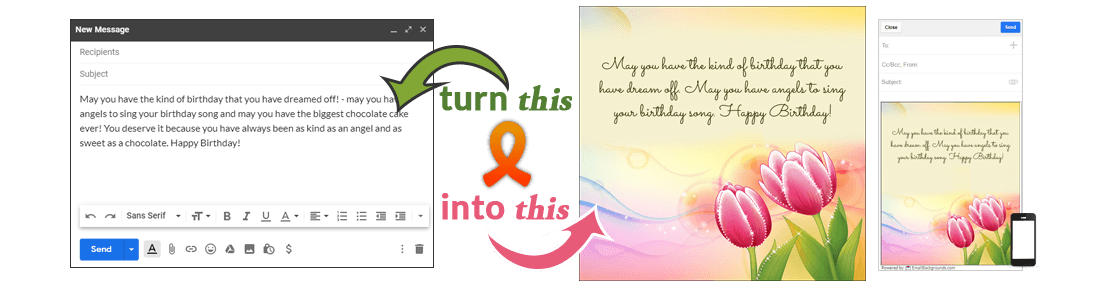
Step 1: Browse backgrounds
Use Categories to find an occasion, then use Sort by to view Newest, Top Rated, Popular, Top Favorites, or Animated themes.

Step 2: Preview and personalize
Open a theme and type your message directly into the design. Use Personalize to select the font, color, size, line height, text alignment, and text direction. Emojis are supported.

To open the emoji picker, press Win + . on Windows, or Control + Command + Space on macOS.
Copy and paste your email stationery
When your design is ready, open Copy to Clipboard & Compose.
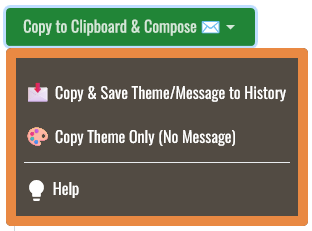
Copy & Save Theme/Message to History
This copies the theme and your message, including the selected handwriting font. It also saves the design in My History so you can reopen, duplicate, or edit it later.

Copy Theme Only (No Message)
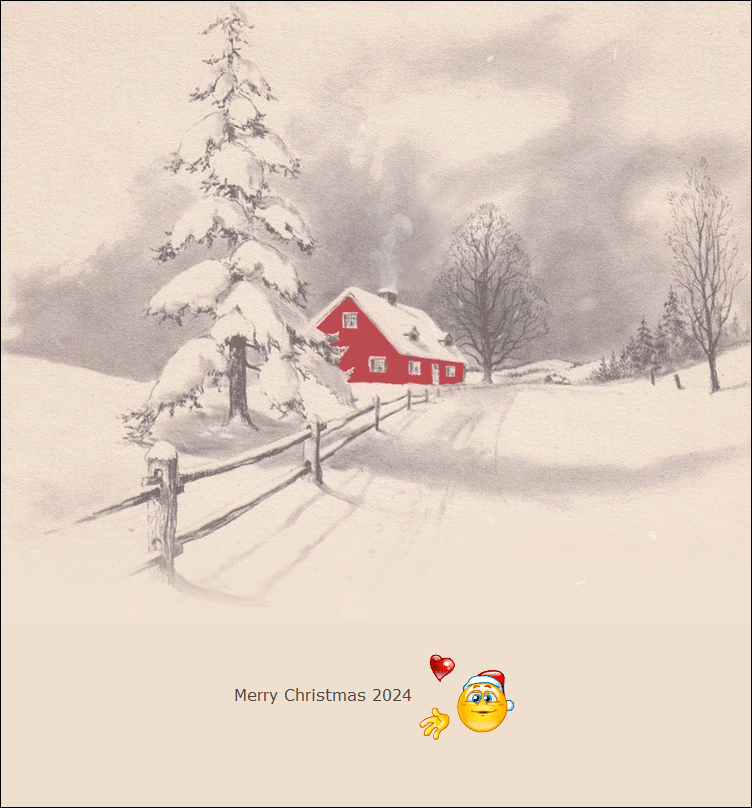
Choose this if you prefer to write directly in your email app. It is useful for adding inline animated emoticons and smileys  . This option does not save a message in My History.
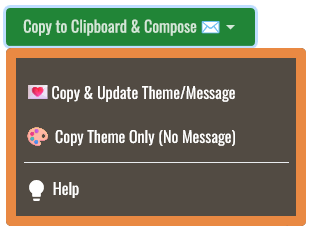
Copy & Update Theme/Message
When you opened a saved item from My History and edited it, this option replaces that saved theme and message for future copies.
Paste into Gmail, Outlook, Yahoo Mail, or another email app
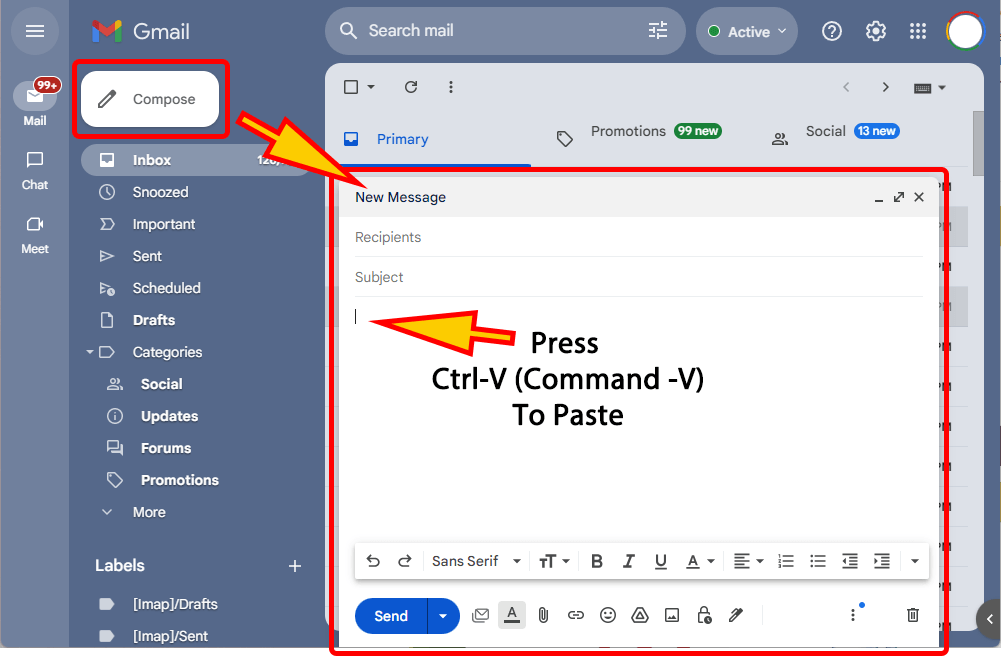
- Open your email app and start a new message.
- Click inside the message area.
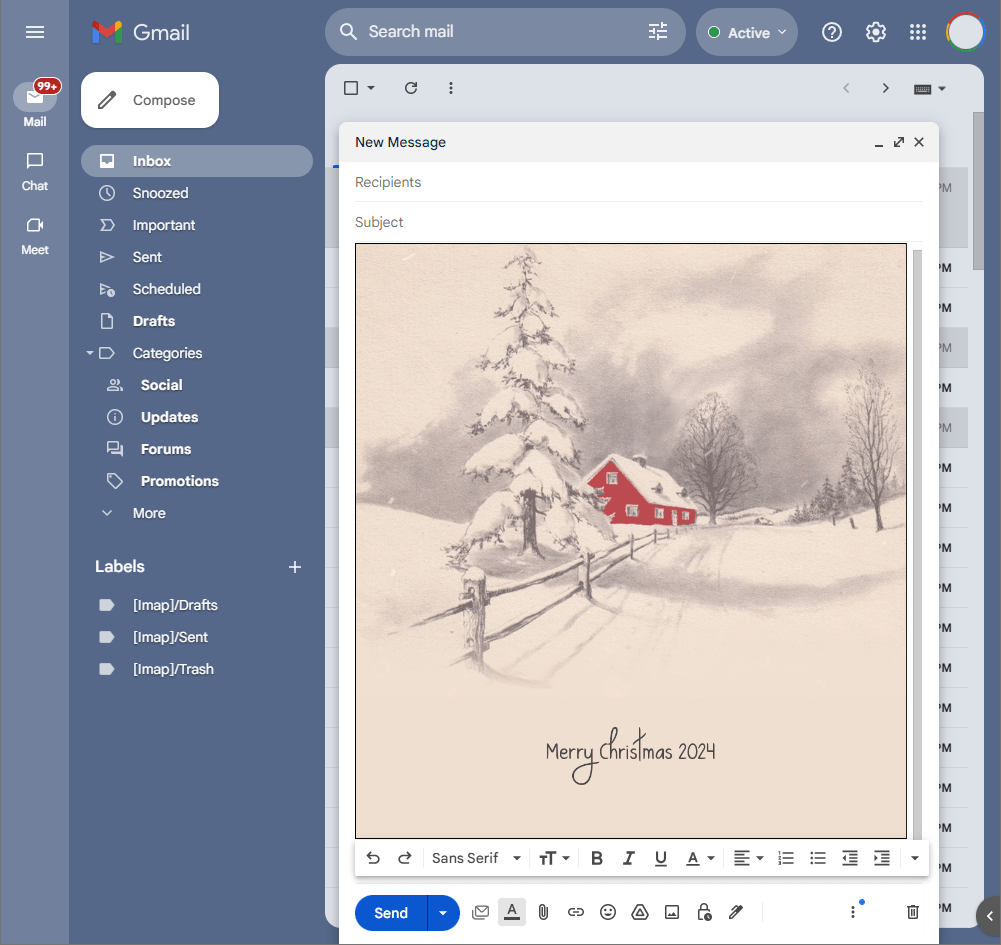
- Press Ctrl + V on Windows or ChromeOS, or Command + V on Mac.
Paste on mobile Gmail
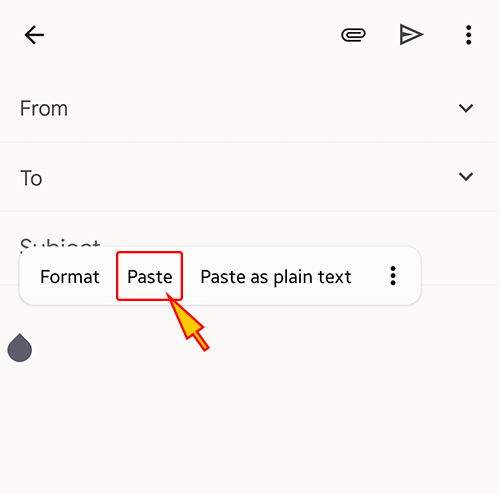
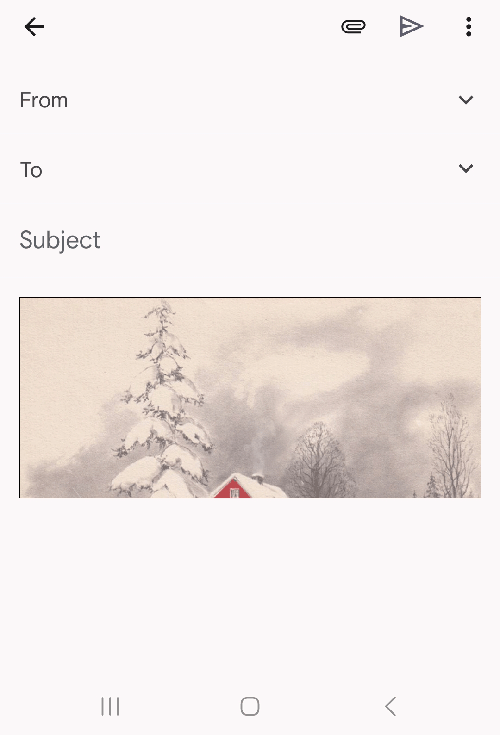
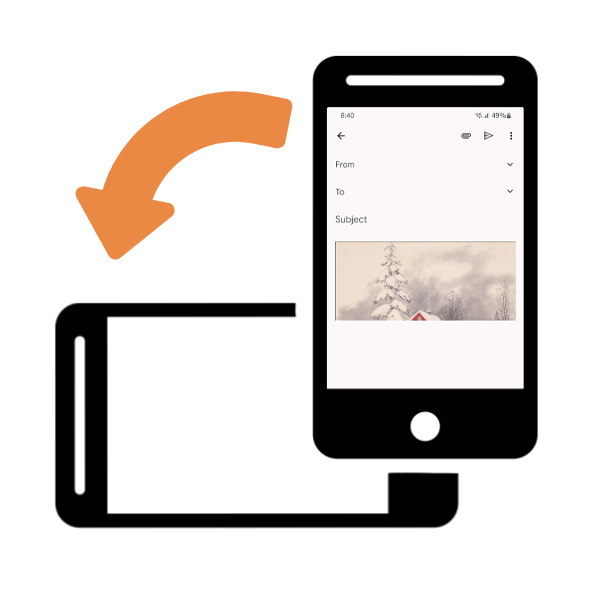
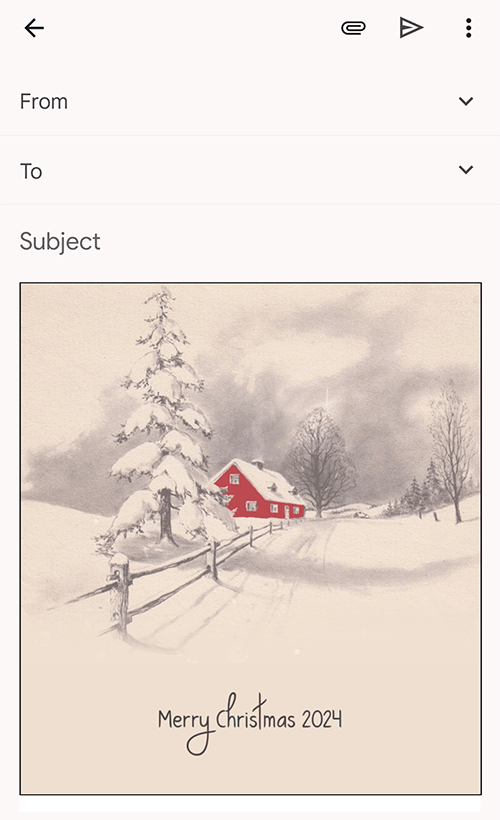
Tap and hold in the message area, then select Paste. If the stationery displays only halfway, rotate your phone to landscape mode, then rotate back to portrait mode before sending.
Favorites and My History
My Favorites keeps themes you want to use again. My History lists the personalized designs you saved with their message and last updated time.
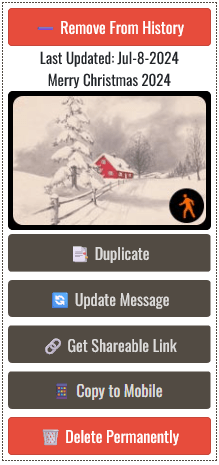
- Remove From History: removes the item from your History.
- Duplicate: opens a new copy so you can send a similar message to someone else.
- Update Message: reopens the saved design in the editor.
- Get Shareable Link: copies a link for sharing by SMS or social media.
- Copy to Mobile: displays a QR code that opens the design on your phone.
- Delete Permanently: removes the saved design and deactivates its share links.
Use your own fonts with Email Backgrounds Pro
Using fonts installed on your computer is an Email Backgrounds Pro desktop app feature for Windows and macOS. The web editor offers its built-in font collection, so a design stays consistent when copied.
Find the system font name in Microsoft Word or another font list on your PC.

In the Pro app, paste that font name into Enter Font Name, select Add to Library, then choose the new font for your message.
Open Font Book from Spotlight, select a font, and copy its system font name.

In the Pro app, paste the font name into Enter Font Name, choose Add to Library, then select it for your email design.
Still need help?
If copying or pasting does not work as expected, please tell us which device, browser, and email app you are using.
Contact Us